




Mangoal Dash Cam for Honda Gen6 CR-V & CR-V Hybrid 2023-2026(Model B)
Description
Description
Custom fit for Honda CRV
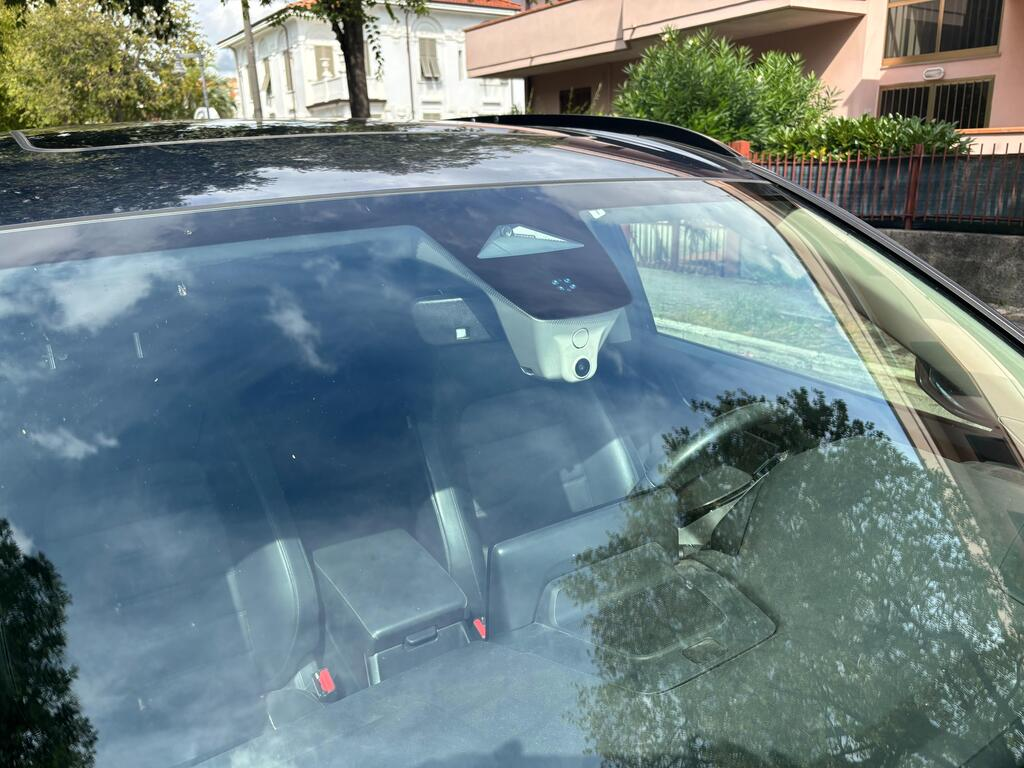
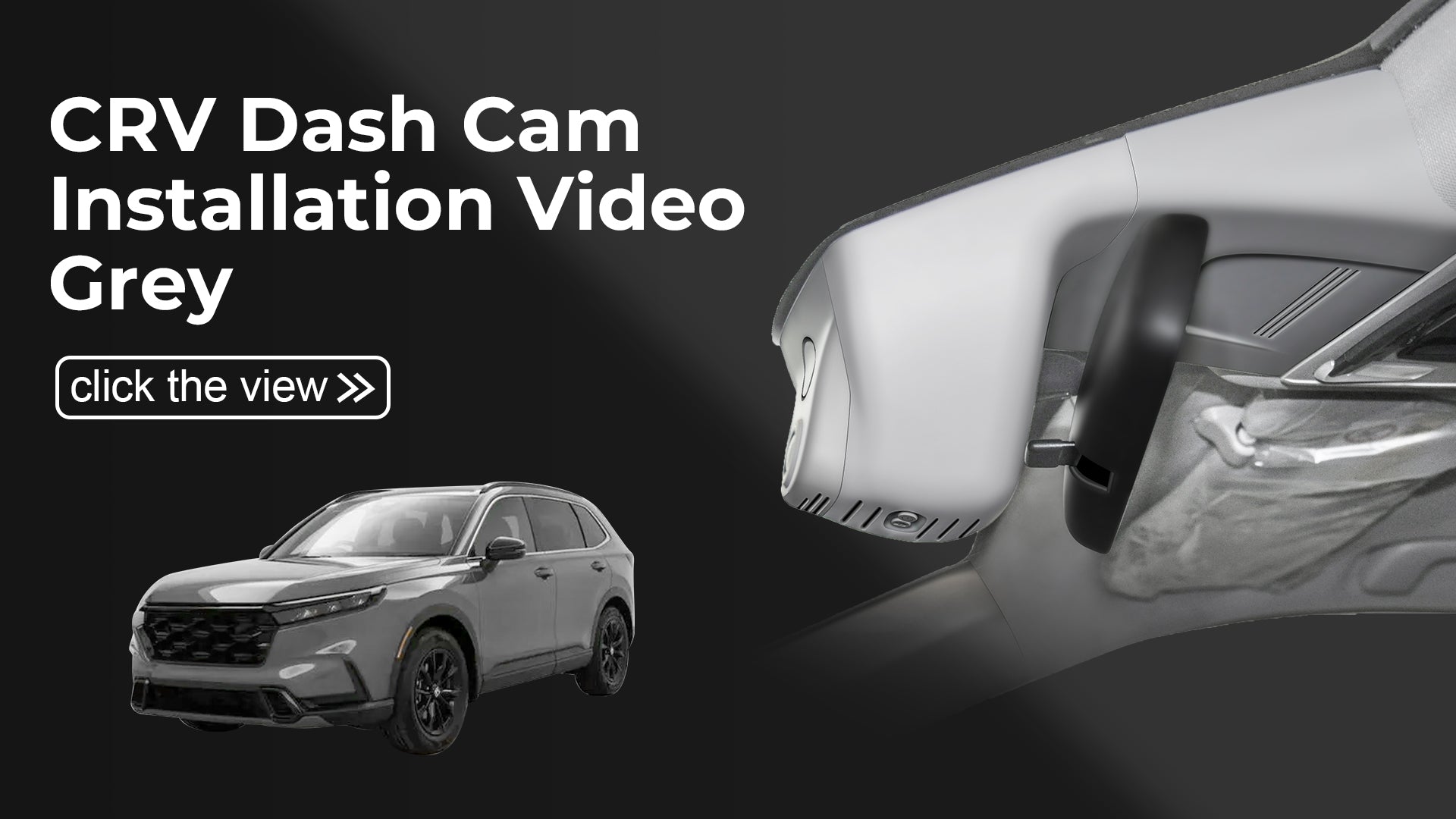
Mangoal dash cam can fit perfectly behind the rear view mirror like original. No messy wiring exposed, no complicated rewire at all. Perfectly integrated with Honda Gen6 CR-V & CR-V HYbrid 2023-2026
4K Image and Ultra HD 2160P Video
Upgraded with f/1.8 big aperture lens and CMOS IMX335 chip to enable high-definition video at 2160P/30fps, Mangoal OEM style dash cam for can provide 4K image performance in all aspects. Mangoal OEM style dash camera displayed with decent dynamic range and precise colors, and can record clear video under low or high light.
Front 4K and Rear 1080P
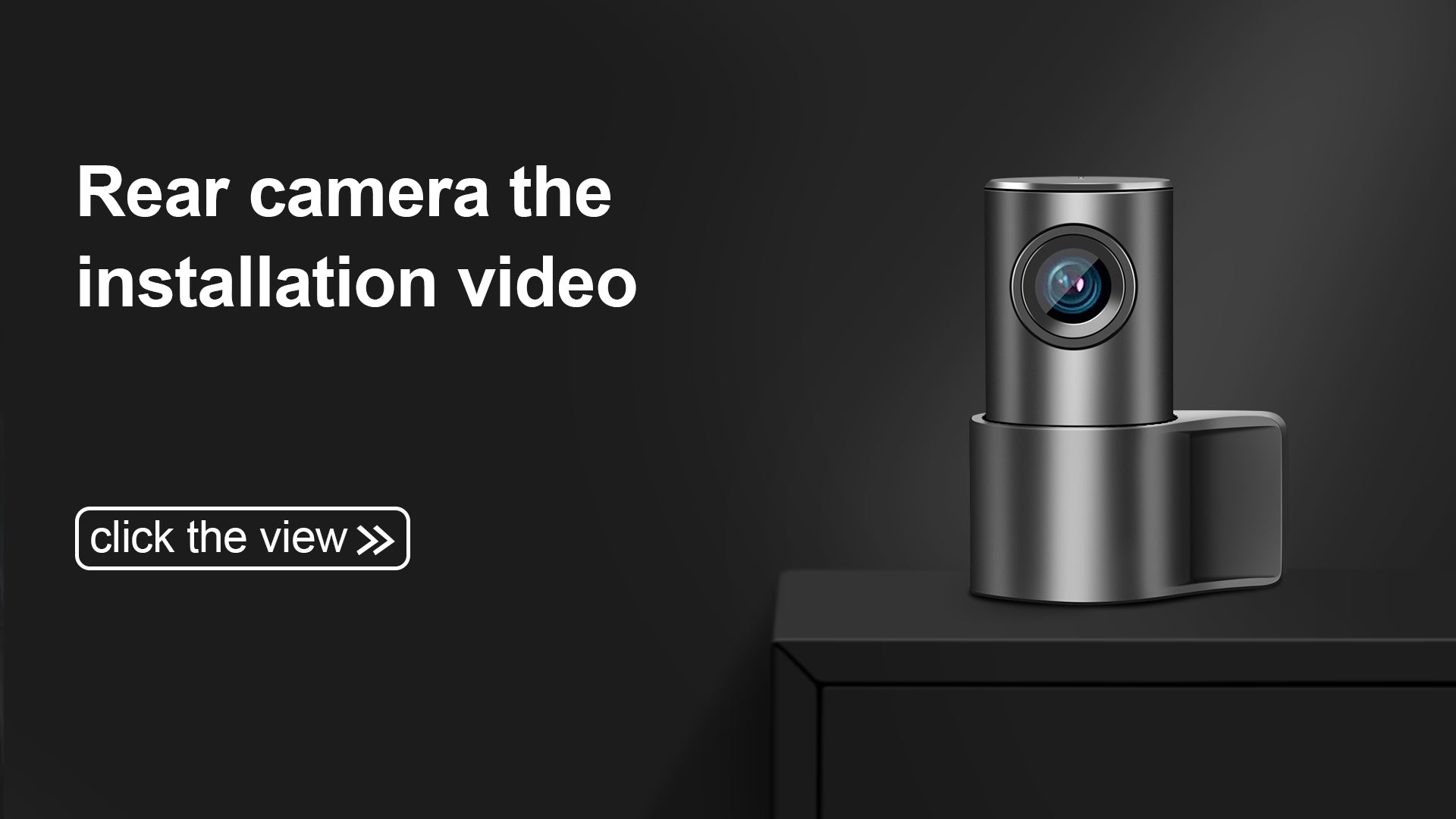
Our dual dash cam which records video of up to Ultra HD 4K(3840x2160)+FHD 1080P resolutions. It helps you to read the key details like road signs, vehicle number plates etc. To reduce the blind areas it has the front wide angle of 170 degree and rear wide angle of 140 degree. This helps you during unexpected circumstances like collision to retain and present evidence.
Built-in WiFi, free App
The built-in WiFi owns higher-definition and faster download speed, and the free user-friendly App makes it convenient to view real-time videos on your phone, download or transfer important footage to PC. You can also share videos on social media with friends or families whenever you want.
Loop Recording & G-Sensor
Seamless loop recording will overwrite the oldest footage with new content when memory card is full. G-Sensor detects a sudden collision and immediately save & lock current video to specified folder, prevents relevant footage from overwriting.
What you get
Mangoal OEM Look 4K Dashcam x1, User Manual x1,GPS module x1, Rear Cam x1, Rear Cam Cable x1, Reading LightPlug Power Y-Adapter x1, Crowbar x1, Strap x2, worry-free 12-month warranty and friendly customer service.
Shipping & Return
Shipping & Return
Shipping
We will arrange the shipment within 48 business hours after getting your payment. All orders will be shipped with the fastest delivery like FedEx/UPS/USPS/DHL. Generally speaking, it will take around 5-15 business days to your country. Currently, we only build the local warehouse in the US, therefore, all US customers can get the package within 5 business days.
We will also apply for local posts in some countries, and we may charge for remote distance payment, which is charged by our cooperated carriers.
Return
We have a 30-day return policy, which means you have 30 days after receiving your item to request a return.
To be eligible for a return, your item must be in the same condition that you received it, unworn or unused, with tags, and in its original packaging. You’ll also need the receipt or proof of purchase.
To start a return, you can contact us atsupport@mangoaltech.com. If your return is accepted, we’ll send you a return shipping label, as well as instructions on how and where to send your package. Items sent back to us without first requesting a return will not be accepted.
You can always contact us for any return question atsupport@mangoaltech.com.
Though we will try our best to help you lower down the import tax, but we won't pay for customs. Please provide the necessary information before shipment.
Any questions about shipment, feel free to email support@mongoaltech.com.
Couldn't load pickup availability
Your payment information is processed securely. We do not store credit card details nor have access to your credit card information.
 Mangoal Dash Cam for Honda Gen6 CR-V & CR-V Hybrid 2023-2026(Model B)


Installation Video
FAQ
What should I do if I forget the Wi-Fi password?
What should I do if I forget the Wi-Fi password?
If you have forgotten the device’s connection password, please follow the steps below to reset it:
✅ Reset Steps:
1.Restore Factory Settings:
Press and hold the “PHOTO” button for 15 seconds. The device will reset to factory settings and restart.
2.Clear Old Wi-Fi Connection:
Make sure the Wi-Fi is on (blue light blinking once per second). On your phone, go to Wi-Fi settings, find the dashcam’s network, and select “Forget this Network” (or “Remove Network”/“Disconnect”).
3.Force Restart the Device:
Press and hold the power button for 5 seconds to turn off the device, then press it again to turn it back on.
4.Reconnect to Wi-Fi:
On your phone, search for the dashcam’s Wi-Fi network again and enter the default password: 12345678.
What to do if the phone cannot connect to the app?
What to do if the phone cannot connect to the app?
When there is an APP connection problem, please refer to the following instructions to solve it
1. Check WiFi Status and Restore Factory Settings
First, please check the indicator lights of the dash cam and ensure that the blue indicator light flashes once per second, which indicates that the WiFi function is working normally.
Please ensure the following conditions are met:
* You are inside the vehicle, or within 10 meters of the vehicle.
* The vehicle engine must be in the started state (turning on ACC power only is not sufficient).
If the red indicator light flashes abnormally, please press and hold the “Photo” button for 15 seconds to restore the dash cam to factory settings.
2. To avoid interference from other WiFi networks, CarPlay/Android Auto, or phone permissions, which may cause connection failure or frequent disconnection after connection (smartphones can only maintain one WiFi connection channel at a time), please configure your phone as follows before connecting:
Turn ON [Airplane Mode] → Turn OFF [Bluetooth] → Ignore or delete the [CarPlay / Android Auto] WiFi → Turn OFF [VPN] and [Mobile Data] → Finally, turn ON only [WiFi] to connect to the dash cam.
Warm Reminder: During daily driving, your phone does not need to remain connected to the dash cam WiFi at all times. This will not affect your normal use of CarPlay, Android Auto, phone Bluetooth, internet access, or other functions. The dash cam starts recording automatically when the vehicle starts and automatically saves videos to the memory card. You only need to connect to the dash cam WiFi network when you want to view or download recorded videos/photos.
After viewing, it is recommended that you delete or select “Forget” for the dash cam WiFi network in your phone settings. This helps prevent your phone from automatically reconnecting to the dash cam WiFi the next time the vehicle starts, thereby avoiding interference with CarPlay or Android Auto.
3. For iPhone users (iOS 18 or above): During the download and installation of the APP, please make sure to tap “Allow” on all permission pop-up windows to prevent the phone system from blocking the dash cam WiFi connection. Enable “Local Network” access permission:
Settings → Tap “Apps” at the bottom → Enable “Local Network”
Enable location permission:
Go to “Settings” on your phone → Scroll down and find “SkyCamm” → Tap “Location” → Select “While Using the App” or “Always”.
4. Connect to the correct WiFi: such as WiFi_E970XXXX / WiFi_USB529Pro_xxxx (Password: 12345678).
Scan the QR code to view the app connection video.
5. If it still cannot connect, please remove the memory card and restart the dash cam, then try changing the APP and use the “Viidure” APP to connect
Will CarPlay, Android Auto or Bluetooth be disabled?
Will CarPlay, Android Auto or Bluetooth be disabled?
The Mangaol dash cam automatically starts recording once the vehicle engine turns on and doesn’t require constant phone connection. You are free to use CarPlay, Android Auto or vehicle Bluetooth during driving while the cam keeps recording normally.If you need to view recorded footage on the APP: turn off your phone Bluetooth first, then connect to the dash cam’s Wi‑Fi.
How to resolve conflicts between dashcam Wi-Fi and CarPlay or Android Auto?
How to resolve conflicts between dashcam Wi-Fi and CarPlay or Android Auto?
Since the phone can only use one Wi-Fi channel at a time, when the phone is connected to the dashcam's Wi-Fi, CarPlay or Android Auto will be interrupted. This is a normal phenomenon, and it will not affect your daily use of CarPlay or Android Auto.
1.The dashcam will start recording automatically when the car is on, without needing to connect to your phone's Wi-Fi, and the videos will be saved to the memory card.
2.While driving, your phone can stay connected to CarPlay or Android Auto without needing to connect to the dashcam's Wi-Fi. Only when downloading or viewing recordings/photos should you temporarily switch to the dashcam's Wi-Fi.
To avoid interference, we recommend the following steps:
1.When viewing recordings, tap "Forget or Disconnect CarPlay or Android Auto" in your phone's Wi-Fi settings, so it won't affect the connection to the dashcam's Wi-Fi.
2.After finishing viewing the video, please also tap "Forget" or delete the dashcam Wi-Fi from the phone's Wi-Fi list, so that next time you get in the car, the phone will prioritize connecting to CarPlay or Android Auto.
3.If you need both Wi-Fi connections simultaneously, we recommend connecting CarPlay or Android Auto via a USB data cable, which will completely avoid Wi-Fi conflicts.
Frequent disconnection after connecting APP
Frequent disconnection after connecting APP
A smartphone can only maintain one active Wi-Fi connection at a time. Interference from surrounding Wi-Fi, CarPlay/Android Auto, Bluetooth, VPN or cellular data often causes unstable or dropped connections.
Follow these steps before pairing with the dash cam:
1. Turn on Airplane Mode
2. Disable Bluetooth
3. Forget saved Wi-Fi networks for CarPlay & Android Auto
4. Switch off VPN and mobile data
5. Enable Wi-Fi only and connect to the dash cam Wifi
How to Format the Memory Card?
How to Format the Memory Card?
You can format the memory card using either method:
Method 1: Via Mobile App
1.Connect your phone to the dash cam’s Wi-Fi
2.Open the Mangoal app
3.Go to Camera Settings > Format > Confirm
Method 2: Via Computer
Remove the memory card and insert it into a card reader connected to your computer
Format the card (recommended format: FAT32 or exFAT)
⚠️ Formatting will erase all data on the card. Please back up important files before proceeding.
What to do if the rear camera image is upside down?
What to do if the rear camera image is upside down?
If the rear camera image appears upside down after installation,
please remove the camera and reinstall it correctly with the arrow pointing upward.
If you have any questions, feel free to contact our customer service. We will guide you through the installation.
What to do if there’s no rear camera display after installation?
What to do if there’s no rear camera display after installation?
If the real-time view does not show the rear camera, please check the following:
1.Make sure the rear camera indicator light is solid blue;
if no indicator light, unplug and reconnect the power connector to ensure a proper connection.
2.On the live view screen, tap the front/rear toggle button at the top left corner to switch between front and rear camera views.
💡 Tip: Recorded videos in Camera files contain synchronized footage from both front and rear cameras.
What to do if GPS fails to locate? Troubleshooting GPS issues:
What to do if GPS fails to locate? Troubleshooting GPS issues:
❓ What to do if GPS fails to locate? Troubleshooting GPS issues:
1️⃣ Check the GPS interface in the app
When GPS is successful, signal bars appear on the main page. If none, please check that the GPS cable pins are fully inserted and properly connected.
2️⃣ Check GPS installation position
Make sure the GPS module is connected correctly with the “GPS” label facing up. Place it in an open area of the vehicle (e.g., dashboard) and avoid enclosed compartments.
3️⃣ Wait for signal lock
Park the vehicle in an open area for at least 2 minutes. You can place the GPS module outside the window briefly to speed up locking, then put it back inside.
4️⃣ Reset the dash cam if needed
If GPS still doesn’t work, press and hold the PHOTO button for 15 seconds to restart the device. The red light will flash, then turn blue indicating a successful reset. It’s recommended to restart your phone before reconnecting.
What to do if the device repeatedly announces “Start recording” and auto restarts?
What to do if the device repeatedly announces “Start recording” and auto restarts?
If the dash cam keeps restarting, please follow these steps:
1️⃣ Format the memory card
Format the memory card via the app. If the app cannot connect, remove the card and format it on a computer using a card reader.
Locked videos and photos are not overwritten during loop recording, causing the card to fill up over time. We recommend formatting every 2-3 months.
2️⃣ Check for memory card issues
If the problem persists after formatting, power off by holding the power button, remove the memory card, then power on again.
If the device works normally without the card but restarts repeatedly with the card inserted, the card may be faulty. Please contact Mangoal technical support for a replacement.